How to change an account's email from temp mail to a real one
By the YelMail team6 min read
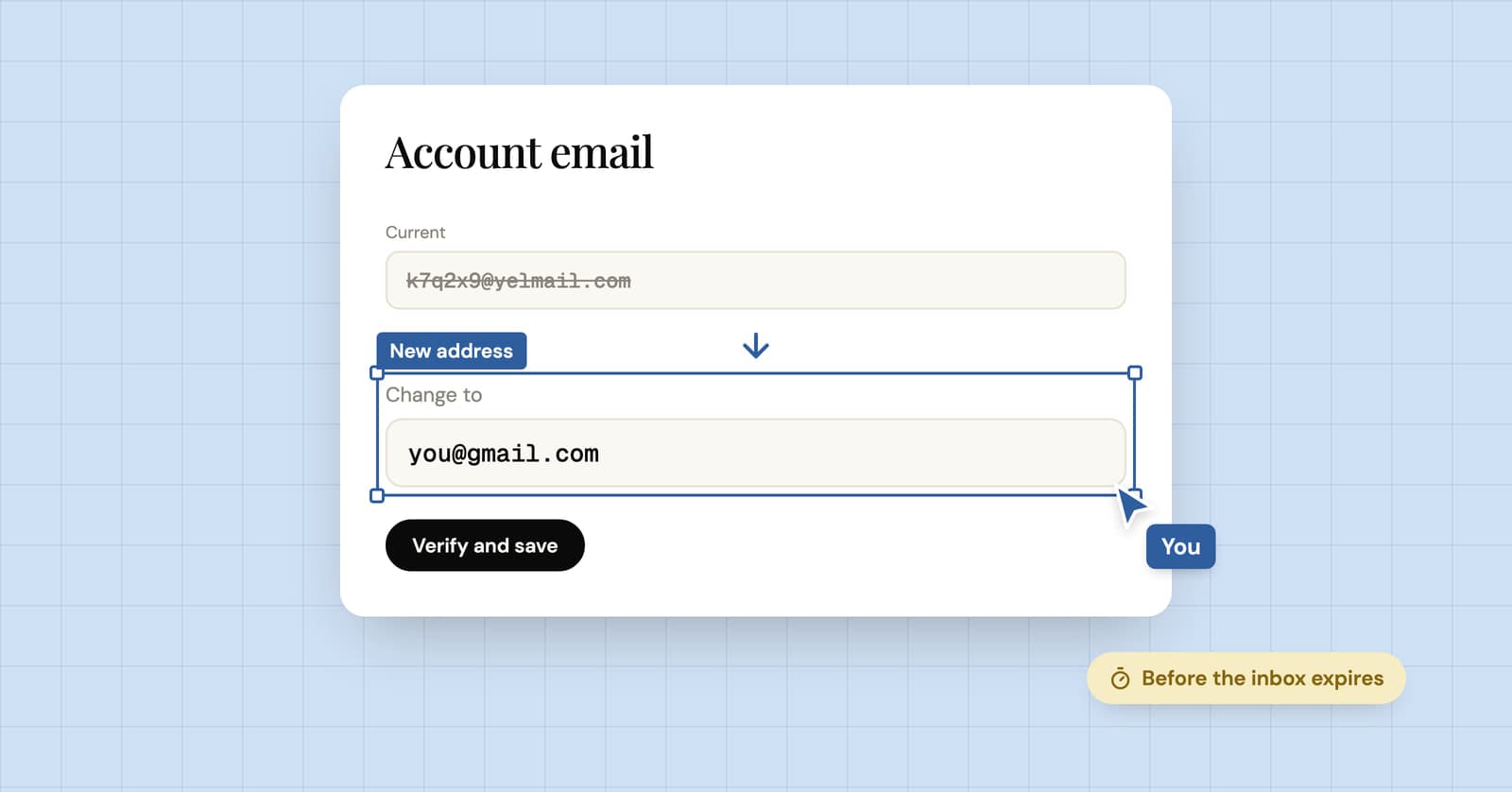
To change an account's email from temp mail, log in, open the account or security settings, enter a permanent address and confirm it with the link or code the site sends. Do it before the temp inbox expires, because many sites also send a code or a notice to the old address and you'll need to read it. Then add a second way in, like an authenticator app.
Why move the account at all?
An account you want to keep needs a lasting email, because that address is how the site knows it's you when something goes wrong. Tie the account to an address that expires, and every future password reset, new-device check and security alert goes nowhere.
Plenty of accounts start as throwaways and quietly turn into something else. The Discord server you joined to ask one question and now help run. The shop that has your order history. The app trial you ended up paying for. None of those should hang on an address that deletes itself.
Move the account now if any of these are true:
- You've paid for something, or a card is saved on it
- It holds things you'd miss: messages, files, a game library, a post history
- Other people depend on it, because you run a group, a server or a shared workspace
- You'd be annoyed to start over
How to change the email on an account
Almost every site keeps it in the same place: account settings, then email. The wording varies, but the flow is close to identical everywhere.
1. Open the temp inbox first
Use the same browser that created it, and check it's still alive. On YelMail Free, opening the inbox resets its 2-hour inactivity timer, so this also buys you time. Leave the tab open until you're finished.
2. Find the email setting
Log in to the account and look under Settings, Account, Profile, Security or Login details. If the website doesn't show it, try the mobile app, or the other way round. They aren't always laid out the same.
3. Enter the permanent address
Use your real address, or an alias you'll keep for years. Type it carefully. A typo here recreates the problem you're trying to fix, except this time nobody at all can read the address.
4. Confirm on both ends
Most sites send a link or code to the new address to prove you own it. Many also ask for your password, or send a code or a heads-up to the old address so nobody can swap the email quietly. Keep both inboxes open side by side. Discord's help center, for example, says that to change your email you need access to the inbox of your current email address, and that its support team can't change it for you.
5. Check that it stuck
Reload the settings page and make sure the new address shows as confirmed, not pending. Some sites keep mailing the old address until you click the confirmation link, so find that email in your real inbox before you close the temp one.
6. Add a second way back in
If the site offers two-factor authentication, turn it on with an authenticator app and save the backup codes in a password manager. Add a recovery phone number too if you're comfortable with that. Next time something breaks, email won't be your only way back.
What if the temp inbox has already expired?
If the temp inbox has already expired, everything depends on still being able to log in. If you can, many sites let you change the email with just your password; if the site insists on a code from the old address, or you're logged out, support is your only route.
A free YelMail address can't be brought back once it expires, and what happens when a temp email expires explains why that also matters for security. What you can still do depends on where you stand.
You're still logged in somewhere
Don't log out anywhere. Check your phone apps, other browsers and other computers for a live session, then try changing the email from there. If the site sends a code to the old address as part of the change, that door is shut and you'll need support.
You're logged out but remember the password
Try logging in. Some sites let you straight in. Others send a code to your email when they see a new device or location, and that code goes to the dead address. If you do get in, change the email before you do anything else.
You're locked out
Contact the site through its help page or contact form. Give them what proves the account is yours:
- The username and the old email address, spelled exactly
- Roughly when you created the account and when you last used it
- Order numbers, receipts or the last digits of a card used on it, if there are any
- The devices and places you usually log in from
Be straightforward about what happened. "I signed up with a temporary address and it has expired" is a clear request, and much easier to help with than a vague one.
Be ready for a no. Some platforms can't verify ownership without the original email, and some say outright that support can't change it. For an account with nothing much in it, starting fresh with a real address is often quicker than arguing.
How to avoid this next time
Decide at sign-up whether an account is a one-off or something you'll keep, and give it an address to match.
Temp mail is right for the one-offs: the download, the Wi-Fi portal, the forum you'll read once. When you aren't sure yet, a Premium inbox is a middle ground. It's saved to your account, keeps email for 30 days and can forward to your personal address, and you can hold up to 25 of them, one per site, while you decide. Long term temporary email explains how that works.
For accounts you know you'll keep, use your real address or an alias from the start. How to create an email alias walks through the options on Gmail, Outlook and iCloud.
Frequently asked questions
Will changing my email log me out or change my password?
Usually neither. Your password stays the same and your current session carries on. Some sites sign out your other devices as a security step after an email change, so keep the password handy. If you use a password manager, update the saved login with the new address, or autofill will keep offering the old one.
Should I use my main email or an alias?
Use your main address for anything tied to money, work, government services or your identity, where you'd want every message to reach you. For other accounts you plan to keep, an alias that forwards to your main inbox works well: you still get the mail, and if the site leaks or sells the address, you can switch that alias off without touching anything else.
Why did the site email my old temp address about the change?
It's a routine security step. Many sites notify the previous address when an account's email changes, so that if someone else made the change, the real owner hears about it. If the temp inbox is still open, you'll see the notice there. It needs no action as long as the change was yours.
Does moving the account delete my temp inbox?
No, the two are separate. The temp inbox expires on its own schedule, and on YelMail you can also press Delete to remove it and its messages at once. Wait until the new address shows as confirmed before deleting anything, in case the site asks for one more code from the old address.
What if the site won't let me change the email at all?
A few services treat the sign-up email as permanent. In that case, ask support whether they can migrate the account. If not, create a new account with your real address, move over what you can, such as settings, saved items or contacts, and then delete the old account while you can still log in to it.
Do it while the codes still arrive
Open the temp inbox, change the email, confirm on both ends and add a backup. That takes a few minutes while the inbox is alive, and can turn into days of back-and-forth with support once it isn't. For the sign-ups you really won't keep, a free temp inbox is still the right tool.
Keep reading
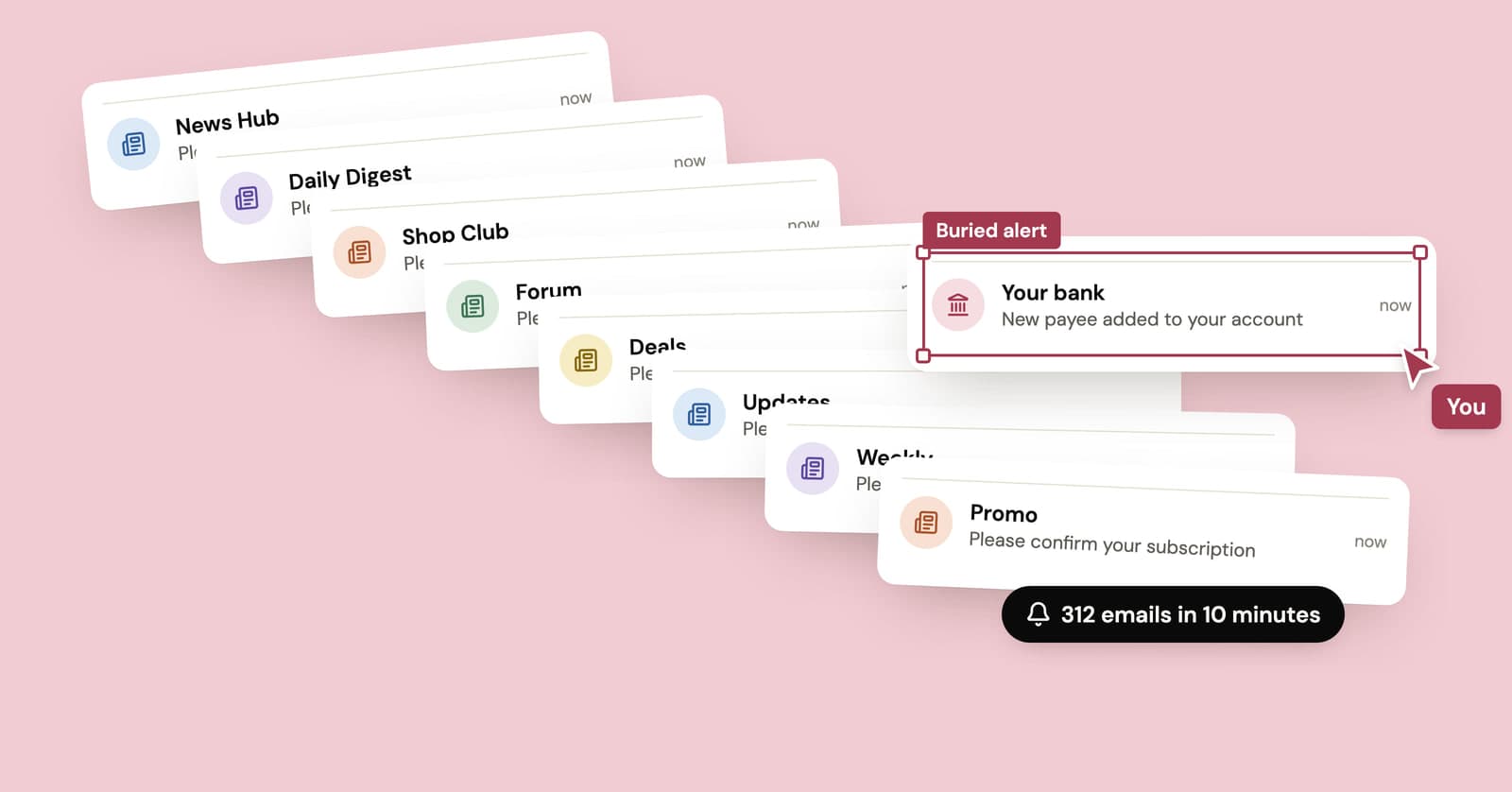
How to stop email bombing, and find what the flood is hiding
A subscription bomb fills your inbox with hundreds of real confirmation emails, usually to hide the one that matters. What to check first and how to dig out.
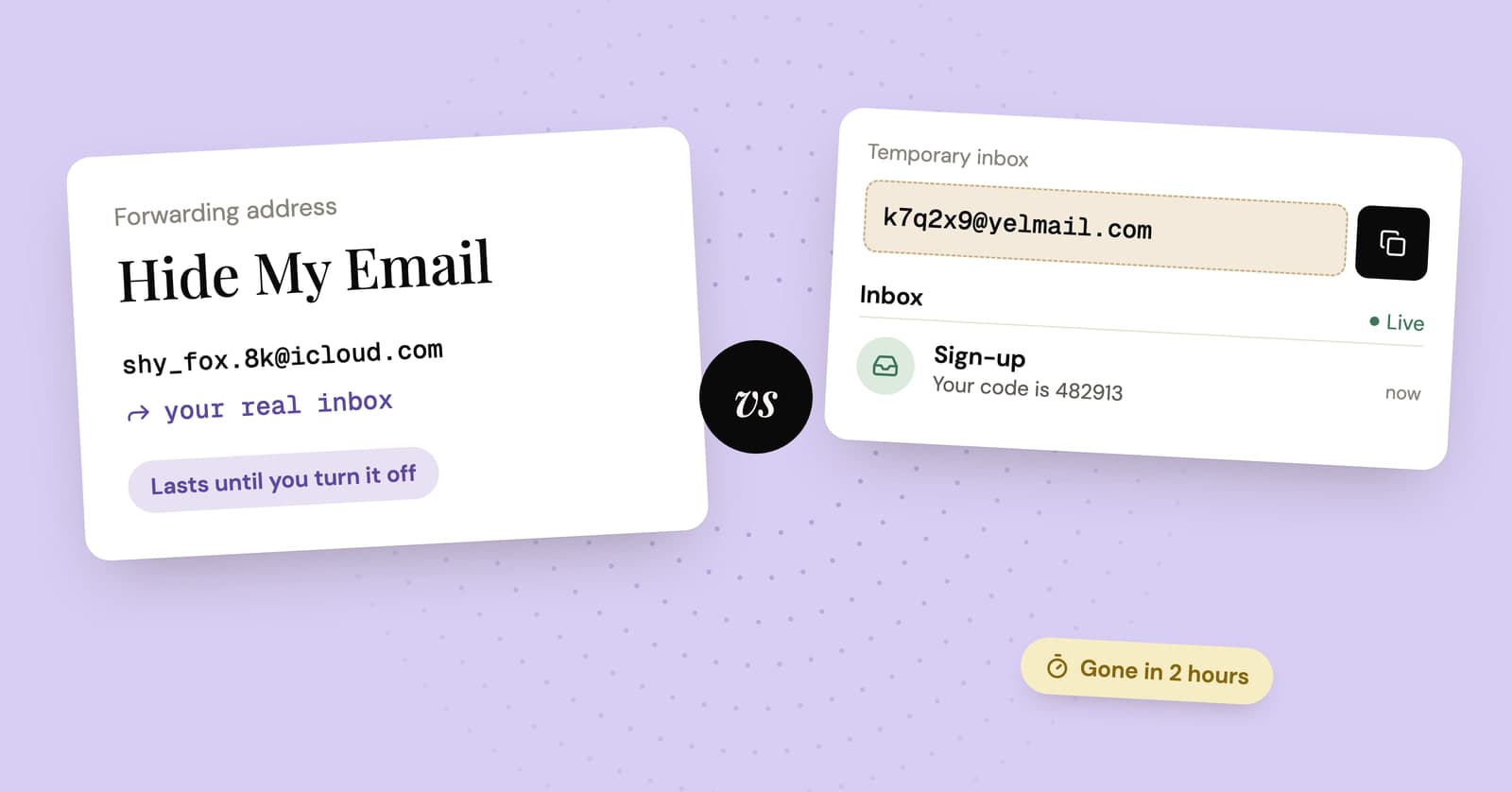
Hide My Email vs temp mail: which one should you use?
Apple's Hide My Email and a temp mail inbox both keep your real address off a form. One is built to last and the other to disappear, so the right pick depends on the sign-up.
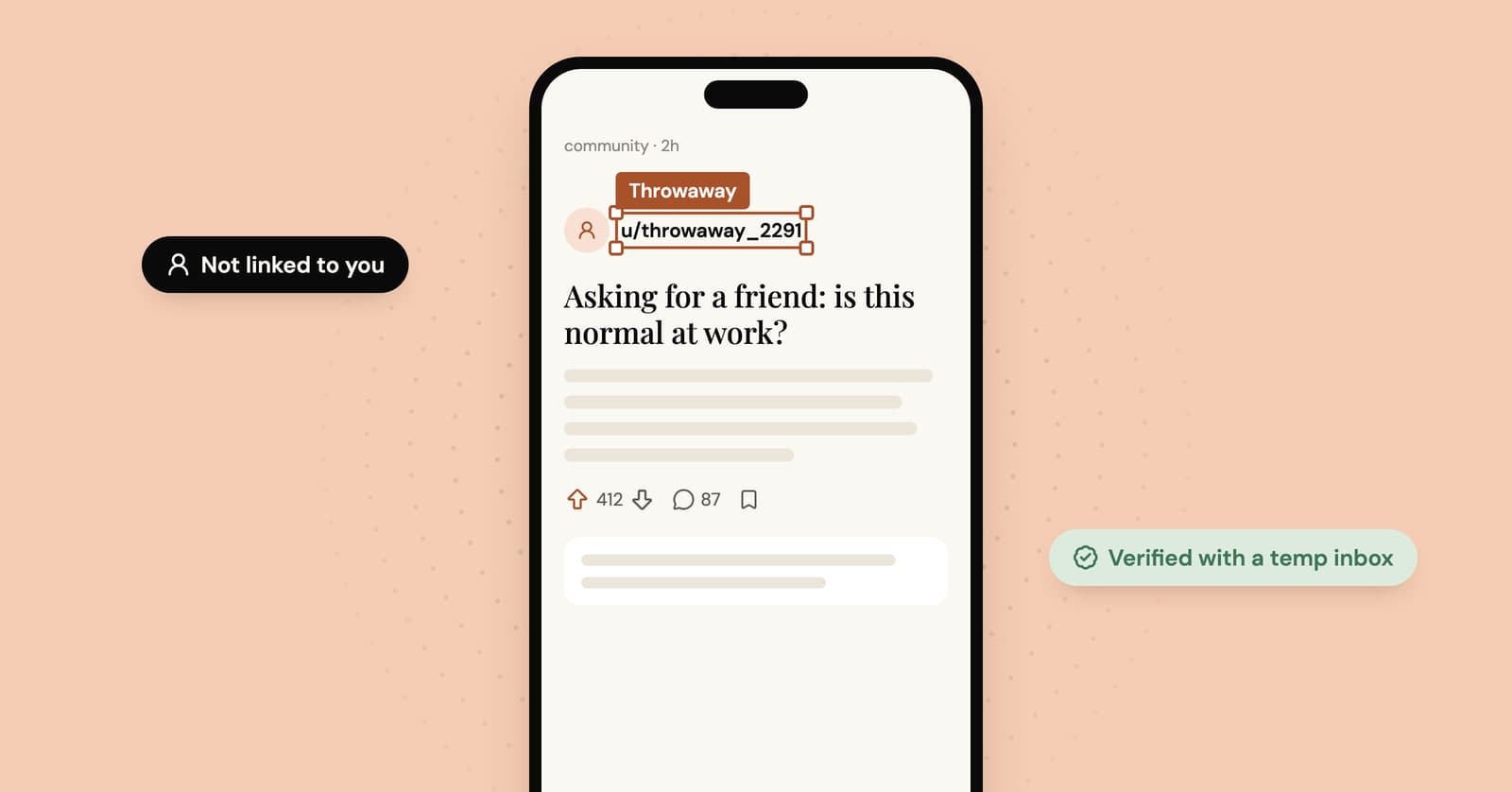
Throwaway email for Reddit: keep the throwaway actually separate
Reddit lets you run more than one account. How to give a throwaway its own email, what exposes throwaways anyway, and the two things Reddit won't tolerate.