How to create an email alias in Gmail, Outlook and iCloud
By the YelMail teamUpdated 8 min read
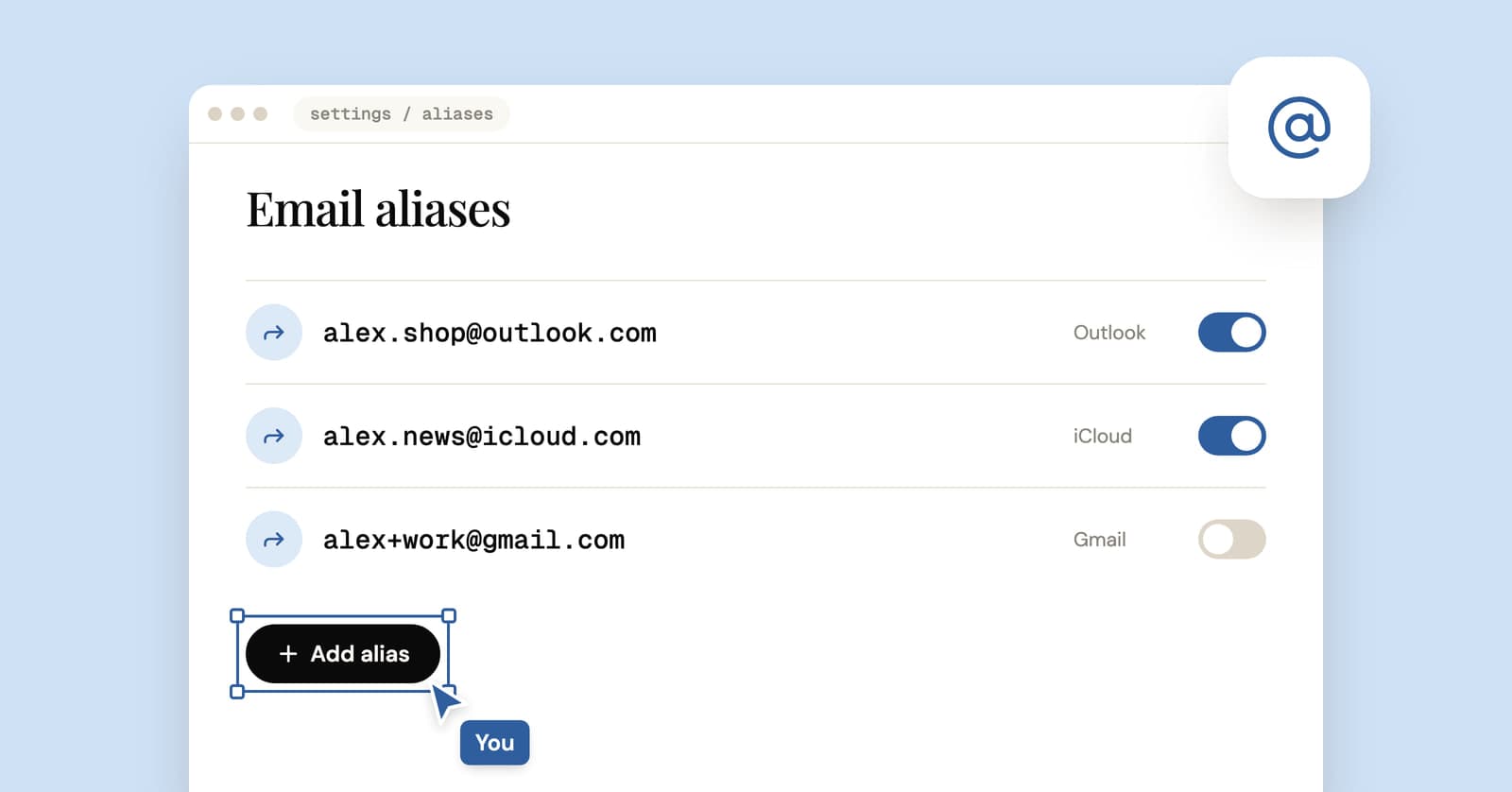
To create an email alias, use what your provider already offers. In Outlook.com, you add a new address to your Microsoft account. In iCloud Mail, you add up to three @icloud.com aliases, or use Hide My Email if you pay for iCloud+. Personal Gmail accounts can't add a second @gmail.com name, so there you use plus addressing, or Send mail as for an address you already own.
What is an email alias, and which kind do you need?
An email alias is an extra address that delivers into a mailbox you already have. Some aliases are simply a second name for the same account; others are random forwarding addresses built to keep your real inbox out of sight.
That difference matters more than the setup steps.
Second-name aliases (Outlook.com aliases, iCloud Mail aliases, Google Workspace aliases) give you a new address you can also send from. They're good for separating roles, like a public address for a side business or a club you run. They come in small numbers, three on iCloud and up to 30 per user on Workspace, so they aren't meant for handing a different one to every website.
Forwarding aliases (iCloud+ Hide My Email and dedicated alias services) are random addresses made for sign-up forms. You can have lots of them and switch each one off on its own.
Tagged addresses (Gmail's plus addressing) aren't separate addresses at all. They're your address with a label stuck on the end.
How to create an email alias in Outlook.com
Outlook.com aliases are managed in your Microsoft account settings, not inside Outlook. You add an email address to the account, and it becomes another name for the same inbox.
- Sign in to the page where Microsoft lists the email addresses on your account:
account.live.com/names/manage. - Select Add email.
- Choose to create a new Outlook.com address, or add an address you already have with another provider.
- Follow the prompts to finish.
To get rid of one later, go back to the same page and select Remove next to it. To send from an alias, show the From field when you write a new message and pick the alias from the list. If you don't, mail goes out from your primary address.
Now the part that matters for privacy. Microsoft's help page on managing the email addresses on your account says all your aliases use the same contacts, storage and account settings. They share a single password, and any of them can be used to sign in. So an Outlook.com alias is a second username for your whole Microsoft account. Handing one to a website means handing that site a working login name for your email, your OneDrive and everything else attached to the account. That's fine for a side-business address you give to people you know. It's a poor choice for sign-up forms.
How to create an email alias in iCloud Mail
iCloud offers two kinds: up to three @icloud.com aliases that you manage on iCloud.com, and Hide My Email addresses, which are random forwarding addresses included with iCloud+.
Add an @icloud.com alias
Apple's instructions only require that you've already set up a primary iCloud Mail address.
- Go to icloud.com/mail and sign in to your Apple Account.
- Select the button at the top of the Mailboxes list, then choose Settings.
- Select Add Alias.
- Enter the alias (3 to 20 characters), a label for your own reference and the full name that should appear in the From field.
- Select Create.
The rules, from Apple's page on iCloud Mail aliases: you can send and receive from the alias on iCloud.com and on any device with Mail turned on in iCloud settings. Turning an alias off is temporary and deleting it is permanent, and either way mail sent to it goes back to the sender. If you already have three and delete one, you have to wait 7 days before creating a new one. So choose the names with some care.
Create a Hide My Email address
Hide My Email needs an iCloud+ subscription. It creates random addresses that forward to your personal email, and Apple says you can create as many as you need. On an iPhone:
- Open Settings, tap your name, then iCloud, then Hide My Email.
- Tap Create New Address and follow the prompts. Add a label so you remember where you used it.
- Copy the address into the form that asked for your email.
Safari and Mail can also offer a Hide My Email address directly in a form that wants an email address. To stop one, tap it in the same list and choose Deactivate Email Address, and it stops forwarding. Apple says that when you reply to mail that came in through one, your personal address stays private. We put it up against temp mail in Hide My Email vs temp mail.
How to create an email alias in Gmail
A personal Gmail account can't add a second @gmail.com name. Your options are plus addressing, which Google itself calls a Gmail alias, and Send mail as, which lets Gmail send from an address you already own somewhere else.
Option 1: a plus address
Add a plus sign and any word before the @: [email protected]. It arrives in your normal inbox with the tag intact, so you can filter on it, and there's nothing to set up. The catch is obvious once you look at it: your real address is right there. Our guide to Gmail plus addressing covers the filters and the places it breaks.
Option 2: Send mail as
This doesn't create a new address. It lets you send, from inside Gmail, as an address you already own, like one on your own domain. Following Google's instructions:
- In Gmail on a computer, click Settings, then See all settings.
- Open the Accounts and import tab (on some accounts it's just Accounts).
- Under Send mail as, click Add another email address.
- Enter your name and the address, then click Next Step and Send verification. Work or school addresses also need the SMTP server, username and password.
- Open the confirmation email in that other inbox and click the link.
After that, the address shows up in the From line when you write. Google allows up to 99 of them.
Google's page also lists some leaks worth knowing about. Recipients using Outlook or other services may see your Gmail address in an "on behalf of" line, and out-of-office replies, automatic filter responses and full-mailbox notices can show your @gmail.com address too. And Google says that starting January 2027, Send mail as will stop supporting third-party addresses such as @yahoo.com or @outlook.com. Other Gmail addresses you own and Google Workspace aliases aren't affected.
Option 3: ask your Workspace admin
If your Gmail is a Google Workspace account on a company or school domain, an administrator can add alternate addresses to your account, up to 30 per user. It's done in the Google Admin console, not in your Gmail settings, so you'll need to ask whoever runs your organization's accounts.
Which kind of alias hides your real address?
Only the forwarding kind hides it reliably. Second-name aliases hide your primary address from a sender as long as you remember to reply from the alias, and a plus address doesn't hide it at all.
| Alias type | Where you set it up | Hides your main address | How many you get |
|---|---|---|---|
| Outlook.com alias | Microsoft account settings | From the sender, if you reply from the alias. It's also a sign-in name for your account | Not stated on Microsoft's help page |
| iCloud Mail alias | Mail settings on iCloud.com | From the sender, if you reply from the alias | Up to 3 |
| Hide My Email | iCloud settings, Safari or Mail (iCloud+) | Yes | As many as you need, per Apple |
| Gmail plus address | Nothing to set up | No | No published limit |
| Gmail Send mail as | Gmail settings | No, it sends as an address you already own | Up to 99 |
| Google Workspace alias | Admin console | From the sender, if you reply from the alias | Up to 30 per user |
When is a provider alias the wrong tool?
When you want a different address for every site, or when you never want to hear from the site again. Provider aliases are few and long-lived. They're built for roles, not for sign-up forms.
If you want an address per site, a forwarding service does it better. Our comparison of Firefox Relay, SimpleLogin, DuckDuckGo and addy.io lists what their free plans include. If you own a domain, a catch-all address lets you invent a new name at every checkout without setting anything up first.
For a one-time code, a download or a Wi-Fi login, any alias still pipes mail into your real inbox until you remember to switch it off. A free temp mail inbox skips that step, because it expires on its own. The longer trade-off is covered in temp mail vs email alias.
Frequently asked questions
Is an email alias the same as a second email account?
No. An alias shares the mailbox of the account it belongs to, and with Microsoft it shares the password too. A second account has its own login, its own recovery settings and its own inbox. That separation is the whole point of a second account, but it also means more to maintain: another password, another recovery address and another account to keep active.
Can I delete an email alias later?
Yes, but check what depends on it first. On iCloud.com, deleting an alias is permanent and mail sent to it bounces back. In Outlook.com you remove it from the same account page where you added it. Any site that has the alias on file stops reaching you, so move accounts you want to keep to another address before you delete it.
Do email aliases stop spam?
Only if you can switch off the one that's getting the spam. A Hide My Email address can be deactivated and an iCloud alias can be turned off, which cuts that sender off without touching anything else. A plus address can't be switched off, only filtered, because it's your real address with a label on it.
Test it before you hand it out
Whichever alias you set up, send it a message from another account and reply once, so you see exactly what the other side sees. If the From line shows your main address, fix that before the alias goes anywhere. And for sign-ups that don't deserve an alias at all, there's always a free temp mail address.
Keep reading
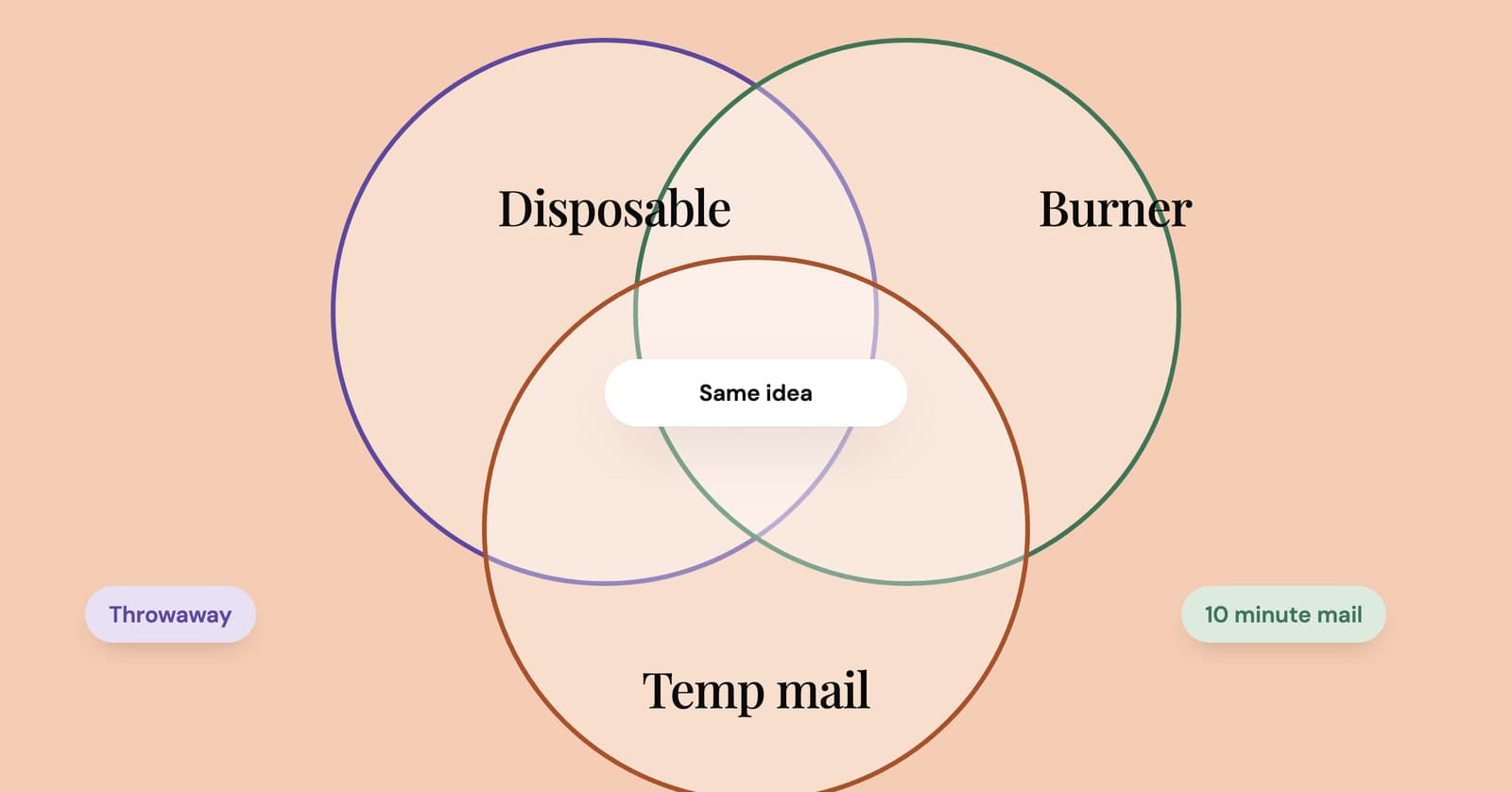
Burner email vs disposable email vs temp mail: what's the difference?
Burner, disposable, throwaway, 10 minute, alias: what each word actually means, and the four questions that matter far more than the label on the tool.
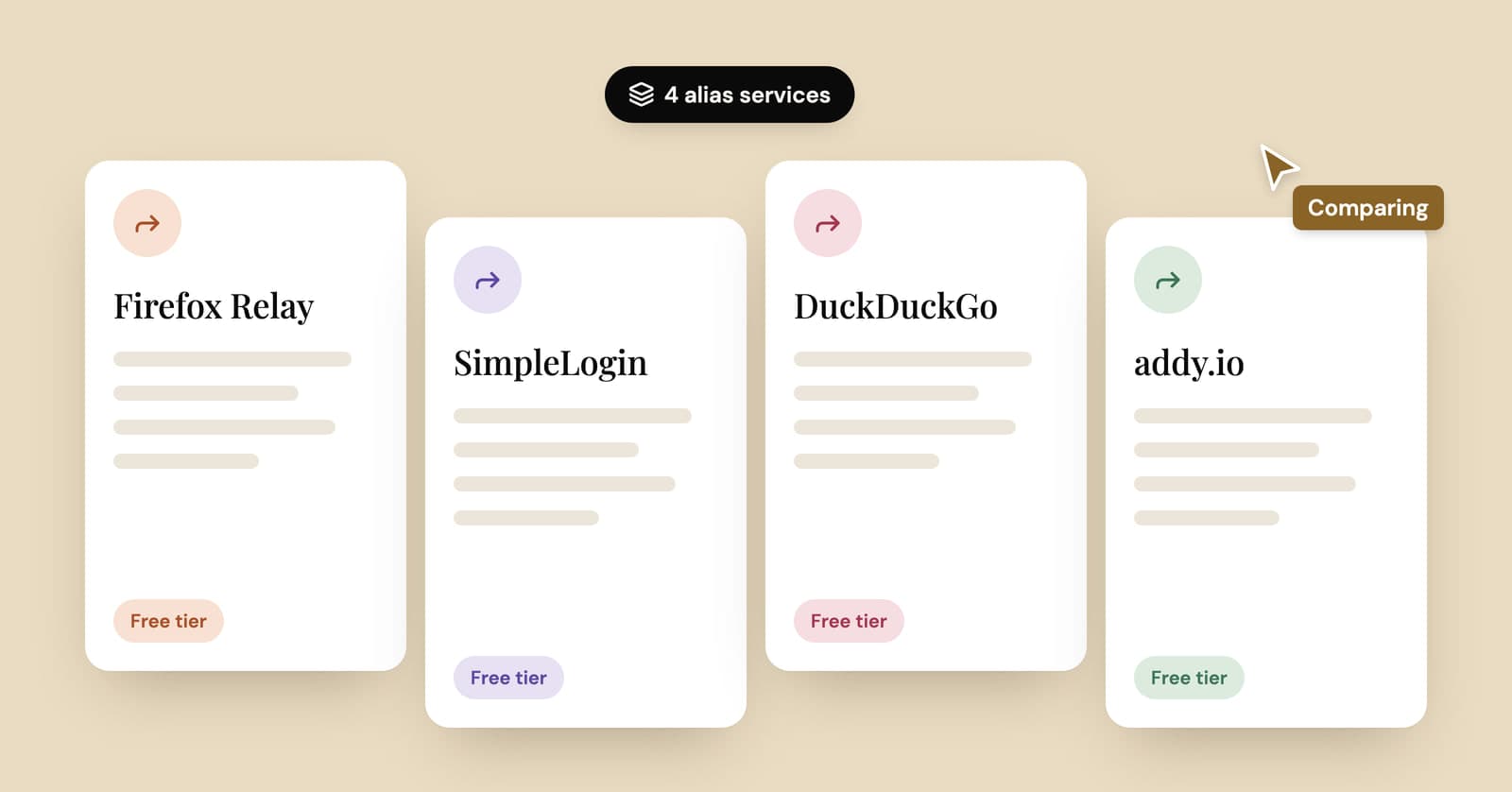
Firefox Relay vs SimpleLogin vs DuckDuckGo vs addy.io: email alias services compared
Four popular email alias services side by side: what each free plan includes, which ones let you reply, what the paid plans cost and when a temp inbox is simpler.
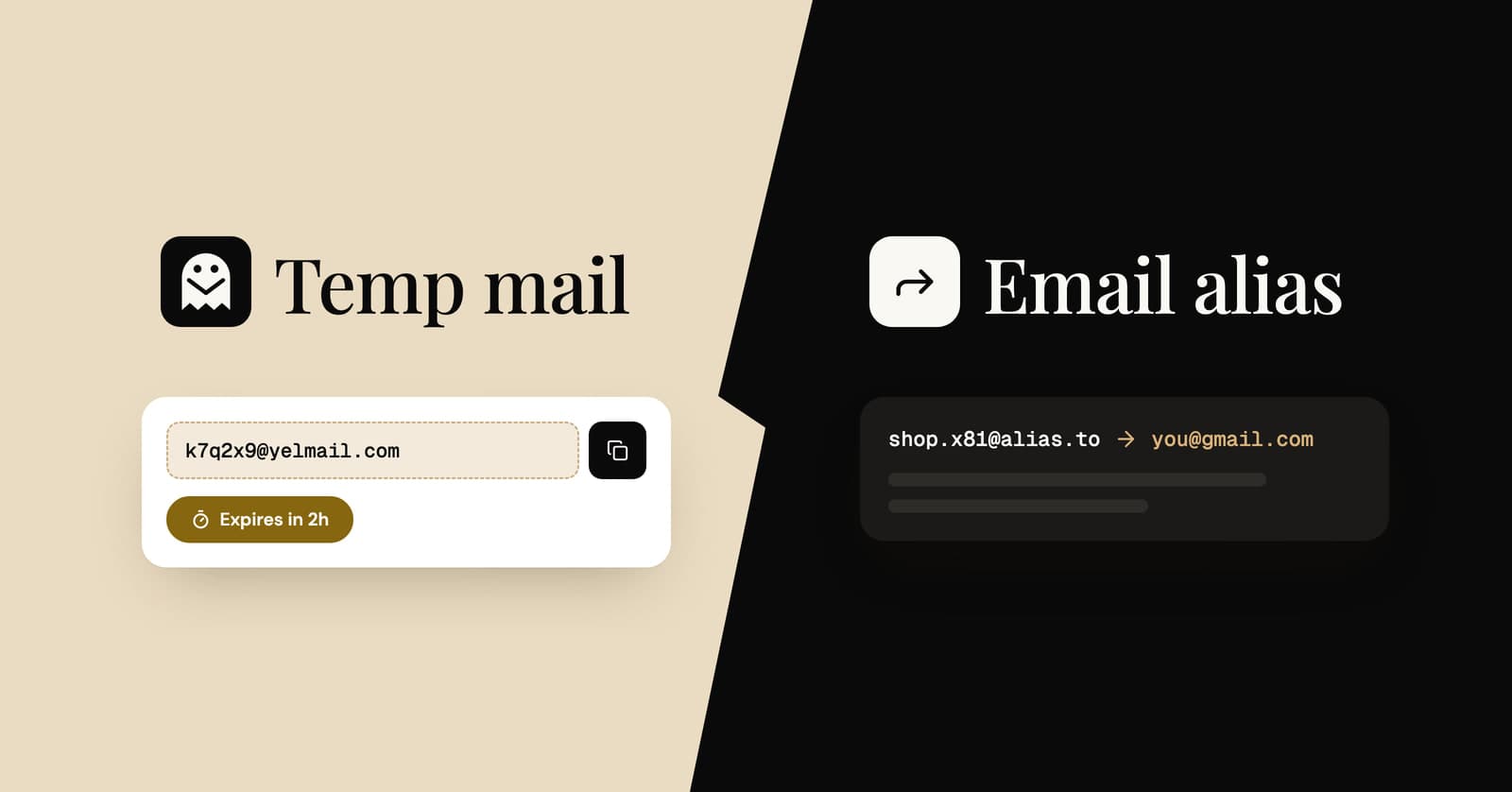
Temp mail vs email alias: which one should you use?
Four ways to keep your real address private, compared side by side, with a simple rule for choosing the right one for each sign-up.