Magic link vs OTP: which email login should you ship?
By the YelMail team9 min read
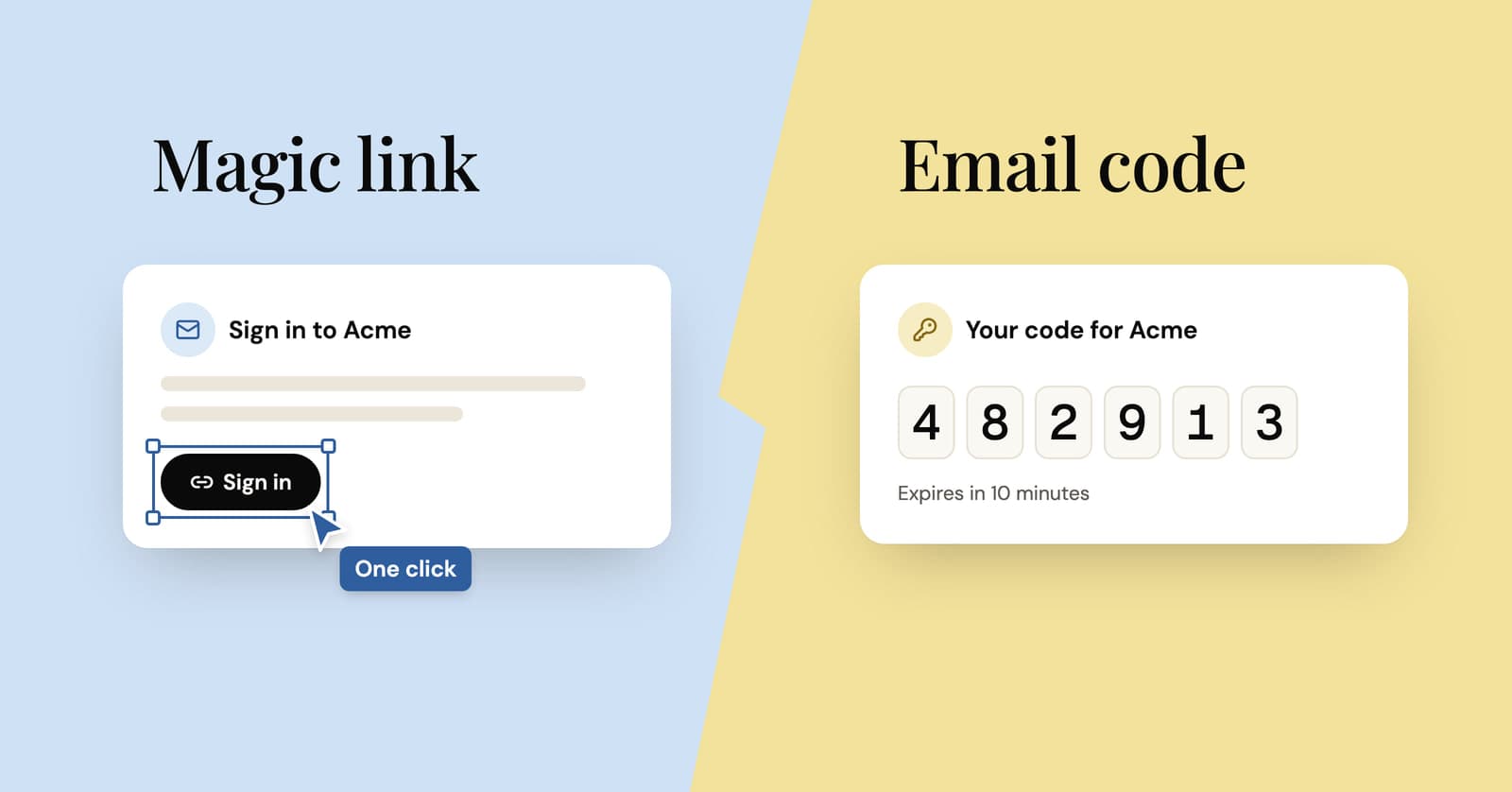
For most apps, a one-time code sent by email (email OTP) is the safer default and a magic link is the smoother one. Codes work when the email is opened on another device, and link scanners can't use them up. Links save typing in a single browser. A good compromise sends both: a code, plus a link to a confirm page.
How do magic links and email codes differ?
Both prove the same thing, that the person can read mail sent to that address. The difference is where the secret goes and which device ends up signed in.
With a magic link, the server puts a long random token in a URL and emails it. Whoever opens that URL gets the session, in whatever browser opened it. With an email OTP, the server emails a short code, usually six digits, and the user types it into the tab that asked for it. The session lands where the login started.
That sounds cosmetic. It decides almost every trade-off below.
| Magic link | Email OTP | |
|---|---|---|
| Who gets signed in | The browser that opens the link | The tab that asked for the code |
| Email read on a different device | Signs in the wrong device | Works: read on the phone, type on the laptop |
| Security scanners in corporate mail | Can fetch and burn the link first | Nothing to click |
| Effort for the user | One click | Six characters, or one tap with autofill |
| Guessing | Long token, not practical to guess | Short code, needs strict attempt limits |
| Real-time phishing | Harder to relay | Easy to relay |
| Installed apps and PWAs | Often opens in the wrong place | Works anywhere there's a text field |
Why do magic links fail for corporate users?
Magic links fail at companies because many corporate mail systems open links before the employee does. Security gateways fetch the URLs in incoming mail to check them for malware, and a link that signs you in on the first request gets used up by the scanner. The user clicks a few seconds later and sees "This link has expired".
This isn't a fringe setup. Microsoft's documentation for Safe Links in Defender for Office 365 says URLs are scanned prior to message delivery, and that links without a known reputation are "detonated asynchronously in the background". Other mail security products do their own versions of the same thing.
The fix is to separate looking at the link from using it:
- The link's
GETshows a small page with a "Sign in" button. It doesn't touch the token. - The button sends a
POST, and only that consumes the token and creates the session. HEADrequests do nothing at all.- Don't auto-submit the button with JavaScript. Some scanners run pages in a real browser, and a script that clicks for the user will click for the scanner too.
Skip the tempting alternative of spotting scanners by user agent or IP range. The list is long, it changes, and you'll find out about the gaps from support tickets.
One more side effect: rewriting gateways put the full URL, token included, through their own systems and logs. That's another reason for short expiry and strict single use.
What happens when the email is opened on another device?
With a magic link, the device that opens the link gets signed in, not the one where the user started. Someone requests a login on their laptop, reads the email on their phone, taps the link, and now the phone's browser is signed in while the laptop sits on "Check your email".
Installed apps have the same problem. A link from an email opens in the default browser unless you've set up iOS Universal Links or Android App Links, so a user of your PWA or mobile app can end up signed in to a browser tab they didn't want.
You have three ways out:
- Use a code. It doesn't care where the email is read. This is the main reason codes win for general audiences.
- Show a code on the link's landing page. If the link is opened on a device that didn't start the login, display a short code there and ask the user to type it on the original device.
- Let the link approve the waiting session. The laptop polls, the phone click approves it. It's the smoothest option and the riskiest, because it's exactly what a phisher wants: they start a login on their machine, and the victim approves it from their own inbox. If you build this, show where the request came from and make the user confirm it explicitly.
Are email codes easier to phish?
Yes. A code can be typed into any page, including a fake login page that passes it straight to your real one while the victim waits. A magic link is harder to relay, because clicking it signs in the victim's own browser rather than the attacker's.
You can make code phishing harder, not impossible:
- Keep the expiry short and limit attempts.
- Say where the code belongs, right next to it: "Only enter this code at app.example.com."
- Include the context of the request: browser, operating system and rough location, so a login the user didn't start looks wrong.
- Never ask for the code through support chat or over the phone, and say so in the email.
Be honest with yourself about the ceiling here. Neither method is phishing-resistant in the way passkeys are, since passkeys are bound to your domain and won't answer a fake site. NIST's digital identity guidelines (SP 800-63B-4) go as far as saying email shall not be used for out-of-band authentication, citing mailbox access with only a password and interception in transit. Email login is a reasonable choice for plenty of consumer products. It isn't strong authentication, and it shouldn't be sold internally as one.
How long should a magic link or code stay valid?
Short and single use. We'd pick something around ten to fifteen minutes: long enough to survive a slow email, short enough that a leaked secret goes stale fast. Once used, it's dead.
Email is slower than people think. Greylisting, sender queues and retries can hold a message for minutes, which is why users sometimes open a code that has already expired. Our post on why verification emails arrive late covers what happens in between. If your window is five minutes, some of your "invalid code" errors are really delivery delays.
The rules that matter more than the exact number:
- Limit guesses per code. Six digits give a million combinations. Allow five wrong tries and then kill the code, and a guesser's odds are 1 in 200,000 per code.
- Limit codes per address. Otherwise the attacker just requests a fresh code and starts again. Cap requests per address per hour, and per IP.
- One live secret per login attempt. When a user asks for a new code, retire the old one and tell them only the newest email works. Two valid codes in one inbox is a support ticket waiting to happen.
- Store hashes, not the secrets. Treat tokens and codes like passwords in your database. Compare in constant time, and tie each one to the specific login attempt and email address.
Small details that make either one pleasant
These cost an hour each and remove a lot of friction:
- Mark the code field with
autocomplete="one-time-code"andinputmode="numeric", so phones offer the numeric keypad and can suggest the code. - Accept pasted codes with spaces or dashes in them. Strip them before comparing.
- Put the code near the top of the email, large, and in the plain text part too. Some mail clients show only text.
- Return the same "Check your email" response whether or not the address has an account, so the login form can't be used to find out who your users are.
- Give the resend button a cooldown of 30 seconds or so, and say that the newest email is the one that works.
On putting the code in the subject line: it's handy, because the code shows in the notification. It also shows on lock screens and in shared preview panes. For a low-stakes login code that's usually fine. For anything that resets a password, keep it out of the subject.
How do you test magic links and email OTP?
Give each test a real inbox, trigger the login, read the email from code, and assert on the traps as well as the happy path. A mocked mailer can't tell you whether a link survives a scanner or whether a code arrives before it expires.
For codes, test that:
- The right code signs in, and the same code fails the second time.
- Five wrong codes lock that code, and the right one then fails too.
- A code past its expiry is refused. Make the TTL configurable so tests don't wait fifteen minutes.
- Requesting a new code retires the old one.
For links, add a scanner test: fetch the link the way a mail gateway would, then check that the token still works for the user. Using the Python helper and inbox fixture from our guide to reading verification emails in Python, it looks like this (paths and field names are placeholders for your own):
from urllib.parse import parse_qs, urlparse

import httpx

import mail

APP_URL = "https://staging.your-app.example"


def test_magic_link_survives_a_link_scanner(inbox):
    httpx.post(f"{APP_URL}/api/auth/magic-link", json={"email": inbox["address"]})
    email = mail.wait_for_message(inbox["id"], match=lambda m: "sign in" in m["subject"].lower())
    link = mail.extract_link(email, contains="/auth/")

    # What a mail security gateway does before the user opens the email
    httpx.head(link)
    httpx.get(link, follow_redirects=True)

    # The user's click: the confirm page posts the token back
    token = parse_qs(urlparse(link).query)["token"][0]
    res = httpx.post(f"{APP_URL}/api/auth/magic-link/verify", json={"token": token})
    assert res.status_code == 200
For cross-device behavior, open two browser contexts in Playwright, request the login in one, and open the link in the other. Then assert whatever you decided should happen. The TypeScript side of that setup is in our Playwright and Cypress guide to email testing, and the API docs cover creating a fresh inbox per test.
Frequently asked questions
Are magic links more secure than passwords?
In some ways. They remove weak and reused passwords, which takes credential stuffing off the table. But all of the security moves to the user's email account, so whoever controls the mailbox controls the login. That's already true for any site with an emailed password reset, so for most consumer apps it's a fair trade, not a downgrade.
Can email OTP be used as a second factor?
It can, but it's a weak one. NIST's guidelines say email shall not be used for out-of-band authentication, while explicitly allowing emailed codes for confirming an address or recovering an account. If you're adding a second factor for accounts worth protecting, offer passkeys or an authenticator app and keep email codes for verification and recovery.
Why do users say the magic link had expired when they just got it?
Usually one of three things happened. A security scanner opened the link first and used up the token. The user clicked an older email after requesting a newer one, which retired the old link. Or delivery took longer than your expiry window. Make the link's first request harmless, tell users which email to use, and check how long your mail actually takes.
Do magic links work inside mobile apps?
Only if the link opens in the app. That needs iOS Universal Links or Android App Links set up for your domain; otherwise the link opens in the default browser and signs in there. Even with them configured, some mail apps open links in their own in-app browser. Codes avoid all of this, and nobody has to debug link routing on three platforms.
What we'd ship
Default to a six-digit code with tight attempt limits, and add a link that opens a confirm page for people who'd rather click. Test both against a real inbox, including the scanner case. If you already have a reset flow, run the same checks there; our password reset testing checklist covers the rest.
Keep reading
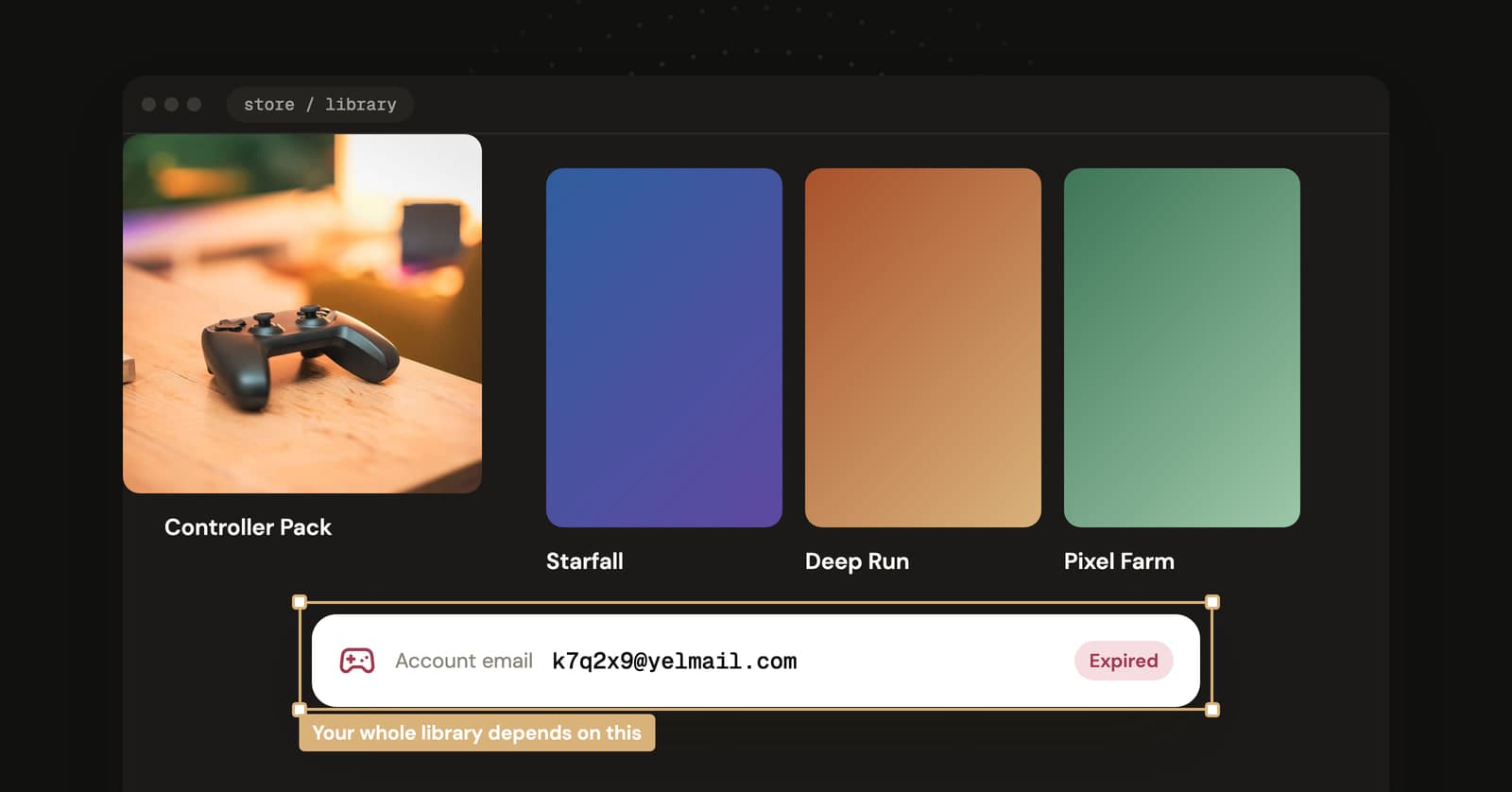
Temp mail for Steam and Epic Games: fine for a look, risky for your library
A throwaway address works for a demo, a beta or a game forum. On an account with games you paid for, it's a lockout waiting to happen at the next new-device login.
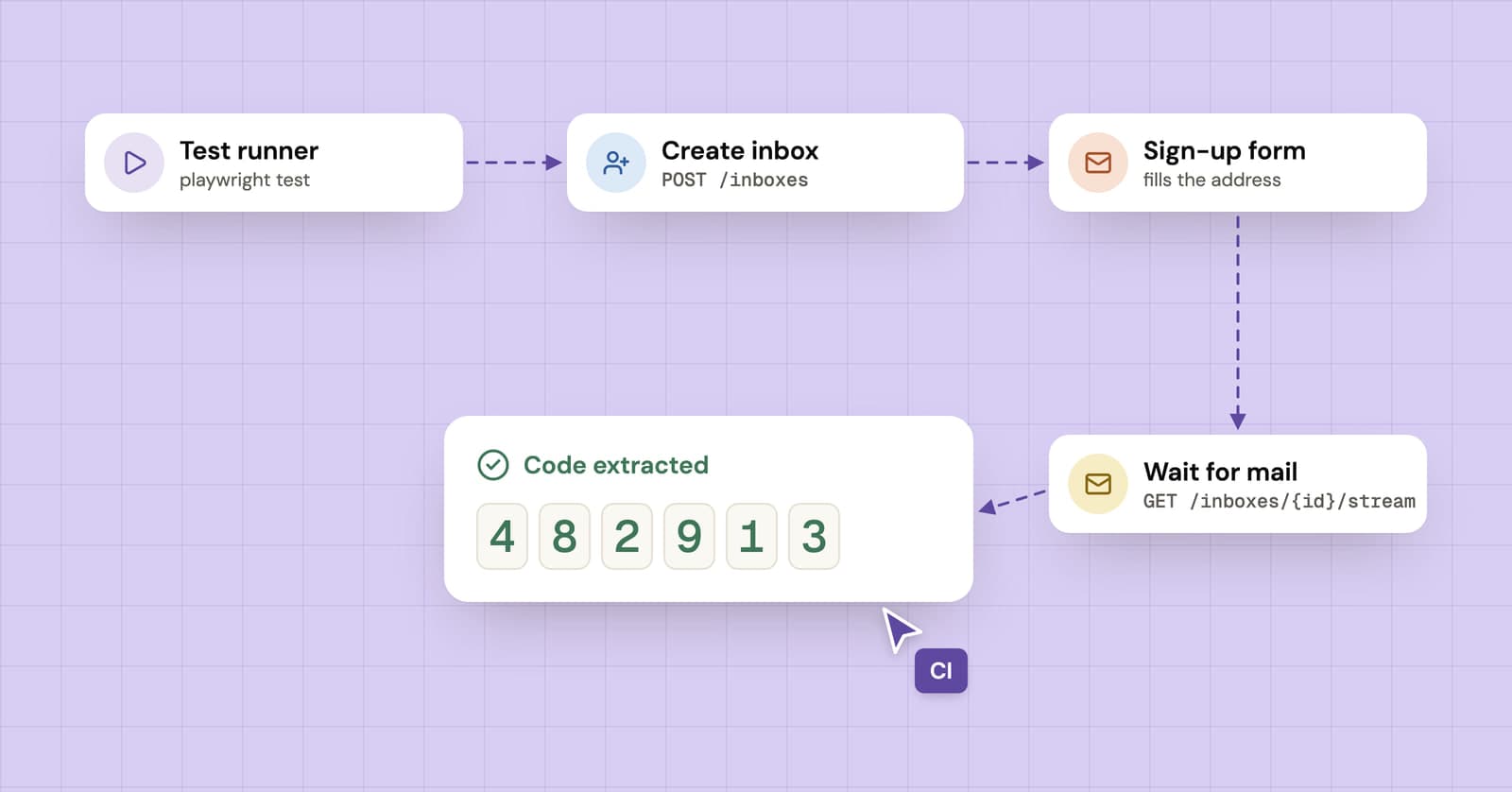
How to test sign-up and verification emails with an API
A practical guide to end-to-end email testing: create a disposable inbox from your test, wait for the verification email and pull out the code or link.
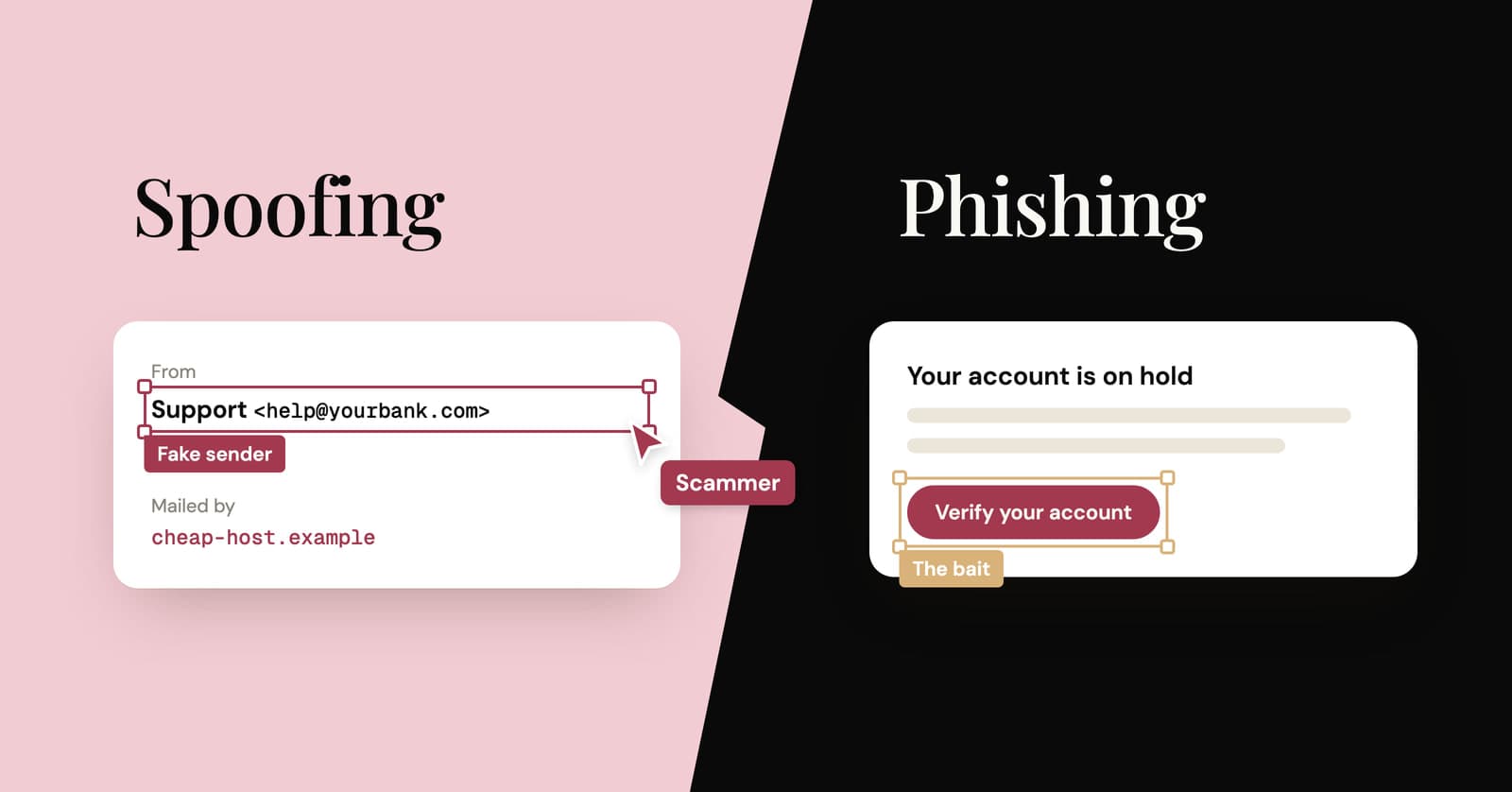
Email spoofing vs phishing: what's the difference?
Spoofing fakes who an email is from. Phishing is the scam that wants something from you. How they differ, what SPF, DKIM and DMARC catch, and how to check a sender yourself.