How to tell if an email is being tracked, and how to block it
By the YelMail team9 min read
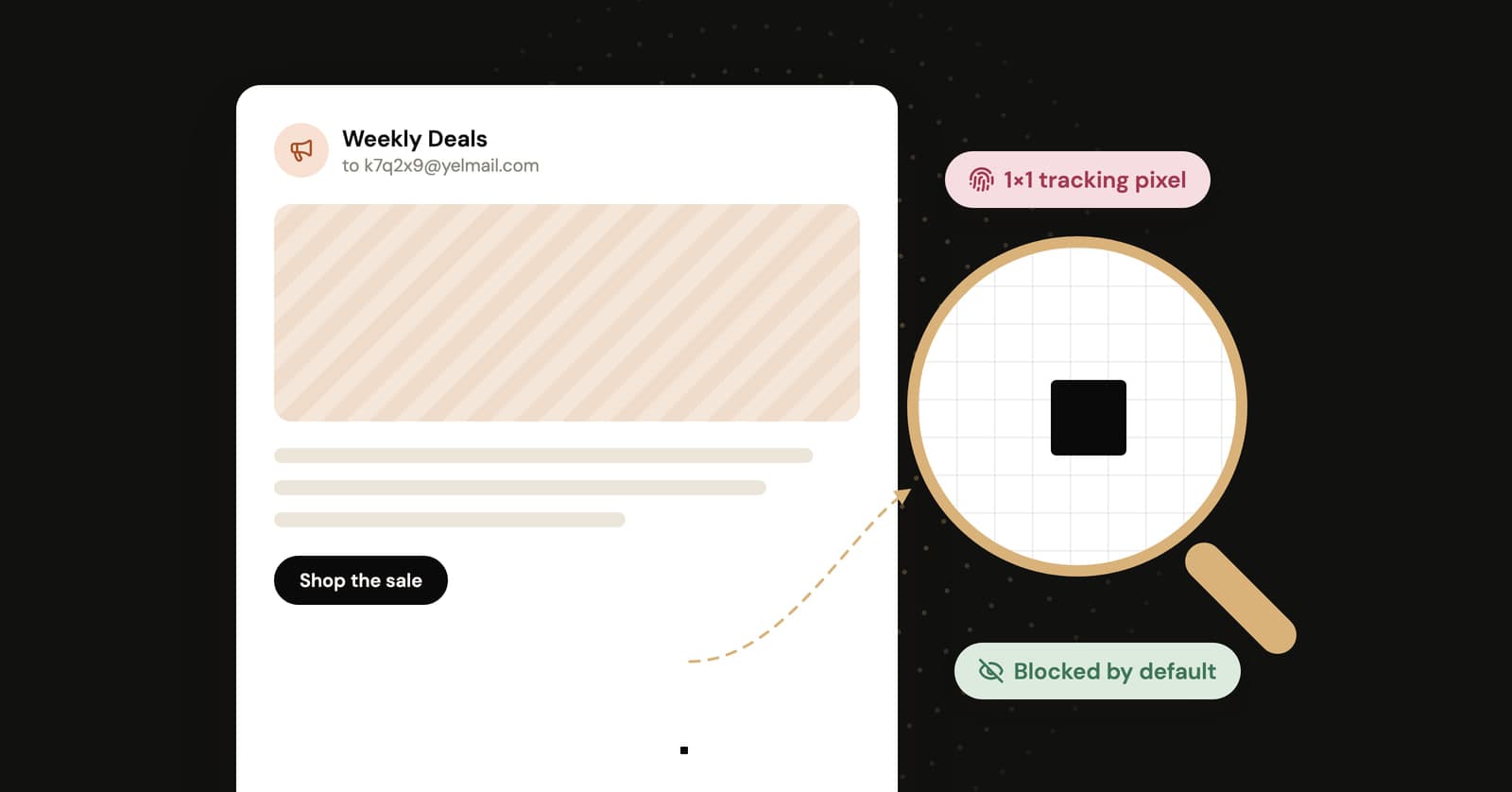
If an email comes from a company's marketing or sales system, assume it's being tracked, and turn off automatic image loading to stop most of it. Email tracking works mainly through a tracking pixel, a tiny invisible image that reports when you open the message, and through links that log each click. Blocking images stops the pixel. Only not clicking stops the links.
How does an email tracking pixel work?
A tracking pixel is a tiny image, usually a single transparent pixel, whose web address is unique to you. When your mail app downloads it, the sender's server logs the request, and that log entry is what shows up in their dashboard as an "open".
The image itself is nothing special. The address is the trick: something like a long string of letters and numbers that identifies you and this particular email. From the request, the sender can usually learn:
- When you opened the email, and every time you opened it again
- Your IP address, which points to your internet provider and a rough area
- Which mail app or device fetched the image
It also confirms that the address is real and that someone reads it. Your favorite newsletter wants that for its open-rate charts. A spammer wants it because a confirmed address is worth more.
This is why "block images" is the standard defense. If the image never downloads, there's no request, and no open to record.
How do tracked links work?
A tracked link points to the sender's tracking server instead of the real page. The server records who clicked, then redirects you to the destination so quickly you rarely notice.
The "Track your order" button in a shipping email might say one thing and point somewhere else entirely, with an ID in the address that ties the click to you. Image blocking does nothing here, and Apple says its Mail Privacy Protection doesn't cover links either. Once you land on the site, it sees you like any other visitor: cookies, IP address and whatever you do on the page.
The honest defense is dull: don't click links in emails you don't need to act on, and when you do need the site, type its address yourself.
How can you tell if an email is being tracked?
You can't always see a tracker, but a few signs give it away. The quickest is your mail app offering to show images or load remote content on an email that doesn't look like it has any pictures in it.
A quick check, in order of effort:
- Look for the images prompt. With automatic images off, a banner saying the message has blocked images or remote content means something wants to load from a server. On a plain-looking email, that something is often a pixel.
- Hover over the links. On a phone, long-press instead. If "View your order" points to a domain that isn't the shop's, or to a long jumble of characters, the link is tracked.
- Read the source. In Gmail on a computer, open the message, click More next to Reply, then Show original. Search the HTML for image tags with a width and height of 1, or image addresses with long unique strings. That's the pixel.
- Watch the timing. A salesperson who follows up minutes after you open, or mentions that you "had a look", is watching opens.
- Consider the sender. Newsletters, promotions and sales outreach are the usual suspects. A note from a friend's personal account usually isn't tracked, though some people do use tracking add-ons.
One reassurance: a plain-text email can't carry a pixel. There's no HTML for an image to live in.
How do you block email tracking in Gmail?
Turn on "Ask before displaying external images" in Gmail's settings. By default Gmail shows images automatically, and Google's help page on images says plainly that senders may sometimes know if you've opened an email that has an image.
On a computer
- Open Gmail and click the Settings gear, then See all settings.
- Scroll to the Images section.
- Choose Ask before displaying external images.
- Click Save Changes at the bottom.
In the Gmail app
- Android: Menu, then Settings, then your account. Under Data usage, tap Images and choose Ask before showing.
- iPhone and iPad: Menu, then Settings. Under Inbox, tap Email preferences, then Images, and choose Ask before displaying external images.
Even with images on, Gmail loads them through Google's own servers. Google says that stops senders using image loading to learn about your computer or location, or to set cookies. What it doesn't hide is the fact that the image was fetched, so the open can still register. The setting above closes that gap until you choose to display images.
How do you block email tracking in Apple Mail?
Turn on Protect Mail Activity. It hides your IP address and loads remote content privately in the background, so senders can't tell if you actually opened a message.
- iPhone and iPad: Settings, then Apps, then Mail. Tap Privacy Protection and turn on Protect Mail Activity. Apple notes it requires Limit IP Address Tracking, which is under Settings, Wi-Fi, then your network.
- Mac: In Mail, choose Mail, then Settings, click Privacy, and select Protect Mail Activity.
Apple's approach is different from Gmail's. On the Mac, Apple says remote content is downloaded privately in the background when a message arrives, not when you view it. Every message looks "opened", which makes the signal close to useless for the sender. The limits, from Apple's Mail Privacy Protection page: it doesn't extend to links or to attachments such as PDFs.
If you'd rather nothing loaded at all, on a Mac you can untick Protect Mail Activity and choose Block All Remote Content instead. Mail then shows a banner on messages with remote content and lets you load it when you want.
How do you block email tracking in Outlook?
Classic Outlook for Windows already blocks automatic picture downloads by default, so the job is checking nobody switched it off. The Outlook apps for iPhone and Android have their own Block external images setting.
- Classic Outlook for Windows: File, then Options, then Trust Center, then Trust Center Settings. Under Automatic Download, make sure Don't download pictures automatically in HTML e-mail messages or RSS items is ticked. Microsoft's page on picture downloads names avoiding tracking pixels as one reason for the default.
- Outlook for iPhone and Android: open Settings and turn on Block external images. Microsoft notes it won't block images embedded in the email as attachments, which covers most mail from friends and family.
- Outlook.com on the web: external images load through an Outlook image proxy. The option lives in your Privacy and data settings, and Microsoft warns that turning the proxy off may put your personal data at risk, so leave "Always use the Outlook service to load images" selected.
Which setting blocks tracking in each app?
One setting per app does most of the work. Settings move around between versions, so if a menu name doesn't match, search the app's settings for "images" or "remote content".
| Mail app | Setting | What it does |
|---|---|---|
| Gmail on the web | Images: Ask before displaying external images | Nothing loads until you choose to show images |
| Gmail for Android | Data usage, Images: Ask before showing | Images wait until you tap Show pictures |
| Gmail for iPhone and iPad | Email preferences, Images: Ask before displaying external images | Images wait until you tap Display images |
| Apple Mail | Privacy Protection: Protect Mail Activity | Loads remote content privately and hides your IP |
| Classic Outlook for Windows | Trust Center, Automatic Download | Blocks picture downloads, on by default |
| Outlook for iPhone and Android | Block external images | Stops internet-hosted images loading |
| YelMail | Nothing to change | Remote images and pixels blocked until you click Show images |
Does blocking images stop all email tracking?
No. It stops pixels, but tracked links still report your clicks, and replying obviously tells the sender you read the email.
Read receipts are a separate thing. With a read receipt, the sender asks your mail app to send back a notice when you open the message, and your app normally asks you first. A pixel never asks. Microsoft makes the same distinction on its Outlook help pages.
Blocking images also doesn't touch the other half of tracking, the part that happens before the email is sent. The company already knows which address it mailed, and if that address is your main one, it can connect your opens and clicks to everything else it knows about you. Why companies want your email covers that side.
How does YelMail handle tracking pixels?
YelMail blocks remote images and tracking pixels by default, so opening an email in a temp inbox reports nothing back to the sender. If you want to see the full design of a particular message, click Show images.
Email HTML is sanitized before it's shown, and scripts never run. Links are still links, though: click one and the sender's tracking server sees the click like it would anywhere else.
There's a second layer of protection that has nothing to do with settings. Even if a pixel did fire, it would only confirm an address that's about to stop existing. That's the reasoning behind giving a temp address to the newsletter you're only half interested in. For the rest of the safety picture, see whether temporary email is safe.
Frequently asked questions
Can someone tell if I opened their email?
Often, yes, if the email contains a tracking pixel and your mail app loads images. The sender sees when you opened it and, unless your app fetches images through a proxy, roughly where from. With images blocked, the sender sees nothing. With Apple's Protect Mail Activity on, they see an "open" for every message, whether or not you read it.
Can a tracking pixel reveal my exact location?
No. A pixel request exposes your IP address, which usually points to your internet provider and a rough area such as a city, not your street. In Gmail, images are loaded through Google's servers, and Apple Mail hides your IP with Protect Mail Activity, so in those apps the sender doesn't get your own IP address from the pixel at all.
Does opening spam confirm my email address?
Loading its images can. A pixel in a spam message tells the sender a real person opened it at that address, which makes your address more valuable to them. Gmail doesn't show images automatically when it thinks a message is suspicious, but keep images off by default anyway, and don't click links in obvious spam. If the volume suddenly jumped, our post on why you're getting so much spam helps you find the cause.
Why do emails look broken when images are blocked?
Many marketing emails are built mostly out of images, headings and buttons included, so with images off you get empty boxes and bits of alt text. That's the trade-off. Keep blocking as your default and load images for individual messages from senders you trust. Gmail and Outlook also let you mark a sender as trusted so its images always load.
Try it on your next newsletter sign-up
Next time a shop wants your address for a discount code, give it a free temp inbox instead. The pixel has nothing to report and the address expires by itself. For your real inbox, change one of the settings above today.
Keep reading
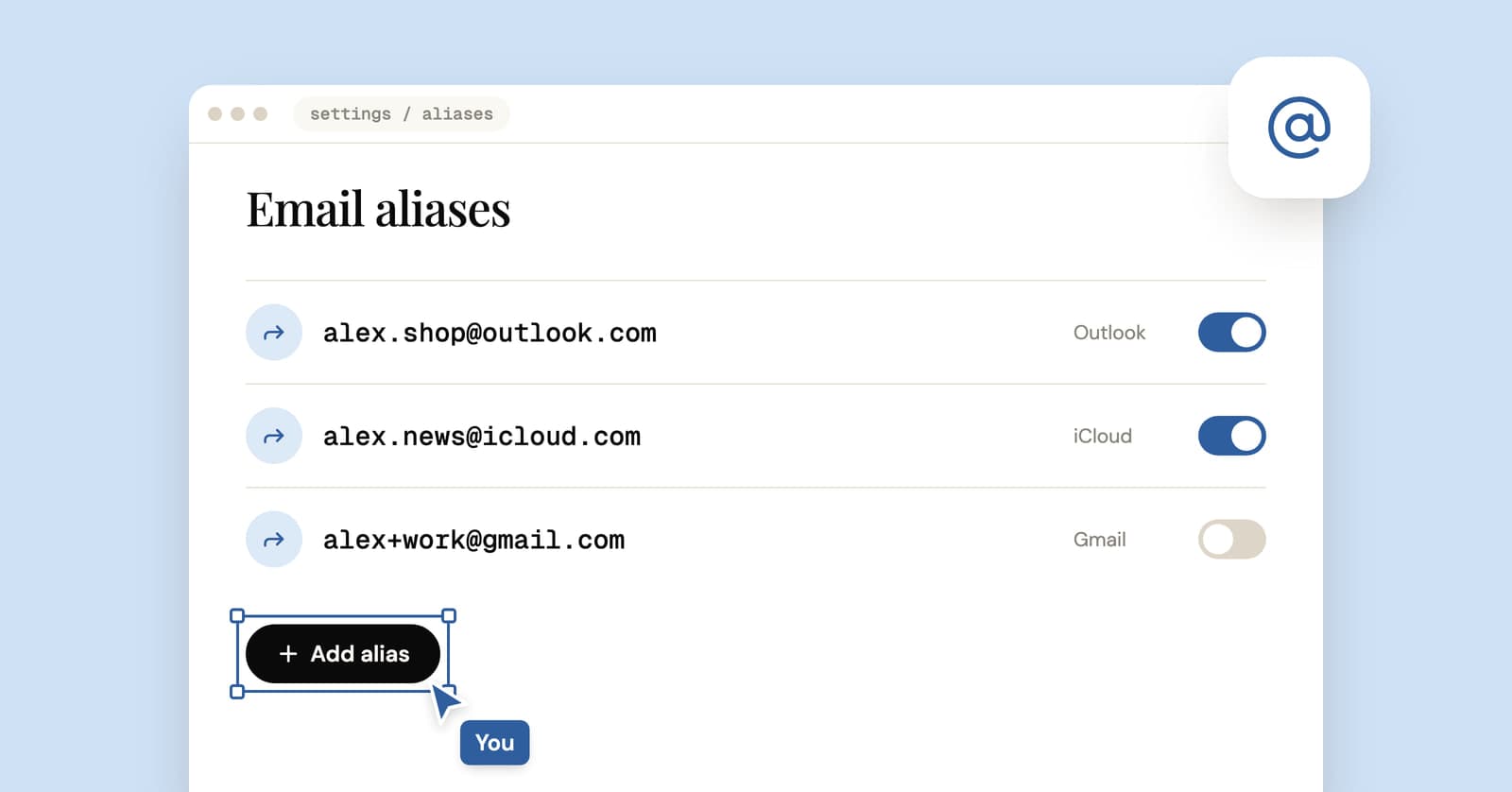
How to create an email alias in Gmail, Outlook and iCloud
Step-by-step instructions for adding an email alias in Outlook.com, iCloud and Gmail, what each kind of alias really hides and when a different tool fits better.
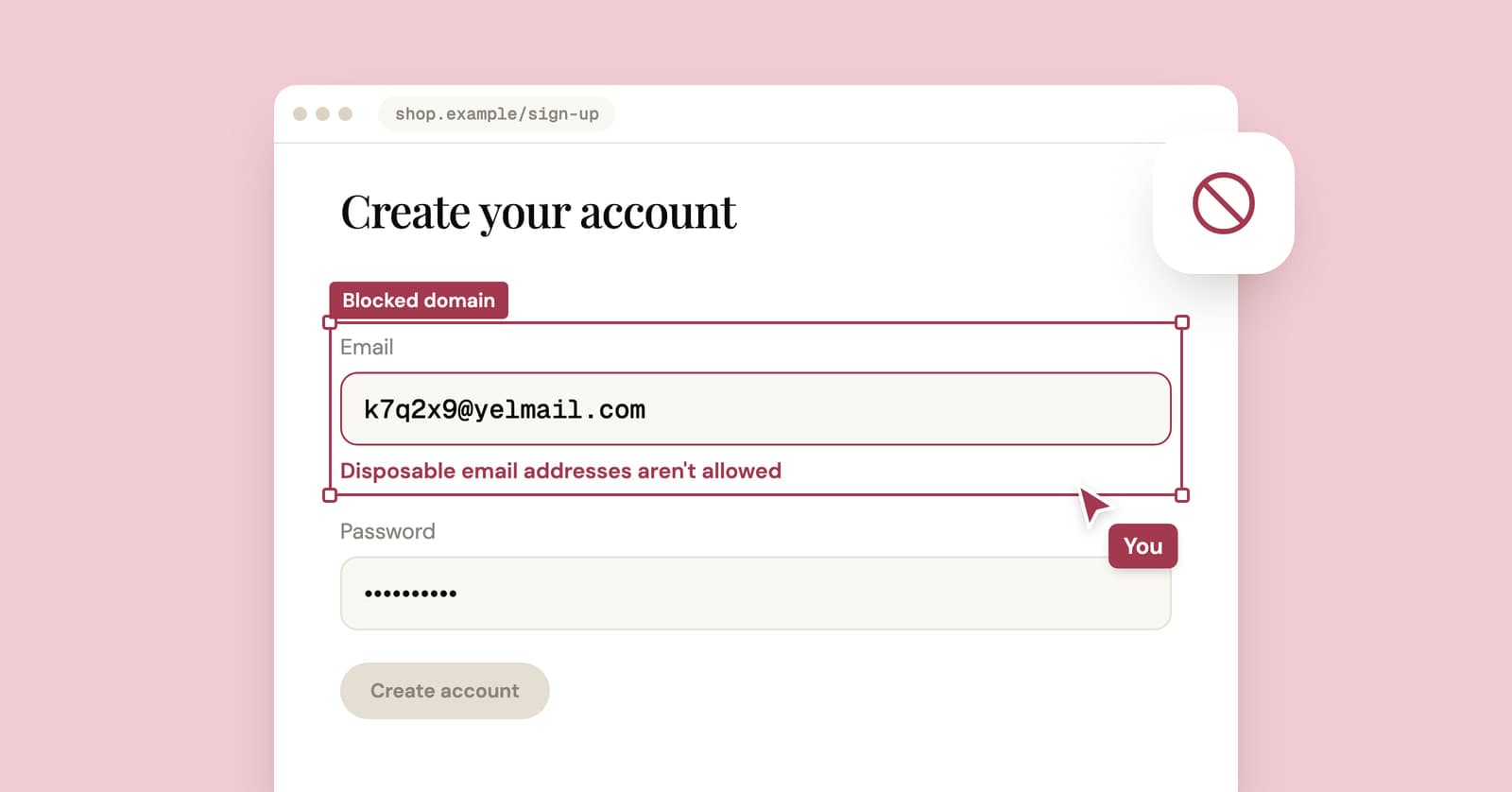
Temp mail not receiving emails? Why sites block temporary email
Why a verification email might never reach a temporary inbox, how sites spot disposable addresses, and a step-by-step checklist of what to try.
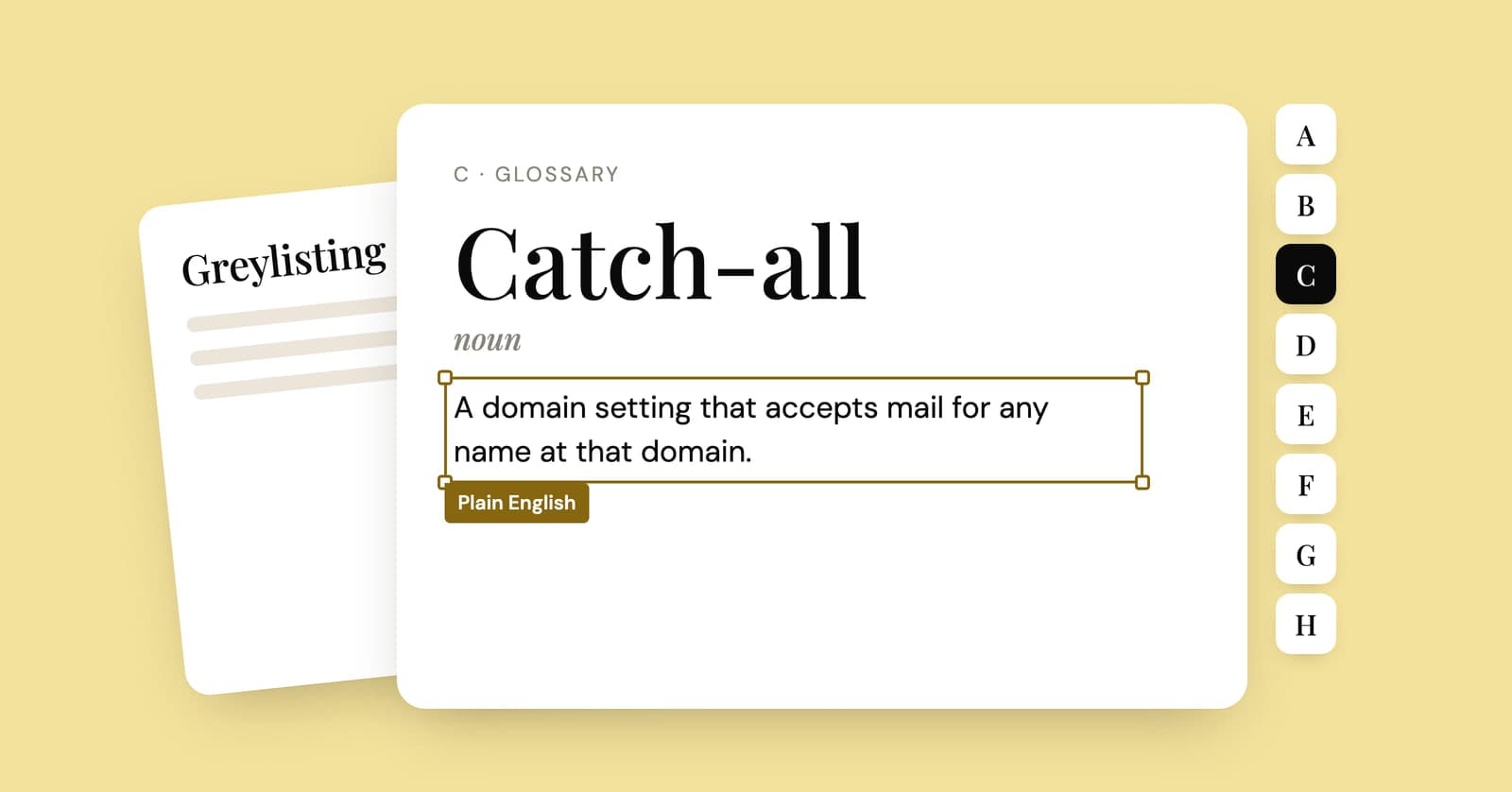
Temp mail glossary: email terms explained in plain English
Short, plain-English definitions of the email and temp mail terms you keep running into, from alias and bounce to SPF, DMARC and tracking pixels.